Documentation
Japanese Building Generator
Everything about the modifier: installing it, the five buildings, every input, the materials, the two scenes, and how to keep it fast.
Overview
The generator is a Geometry Nodes modifier. It ignores the mesh it sits on and builds a complete building at the object's origin: stone base, storeys with pillars, walls, windows and balconies, bracketed eaves, curved tiled roofs with gables and ornaments, and the materials for all of it.
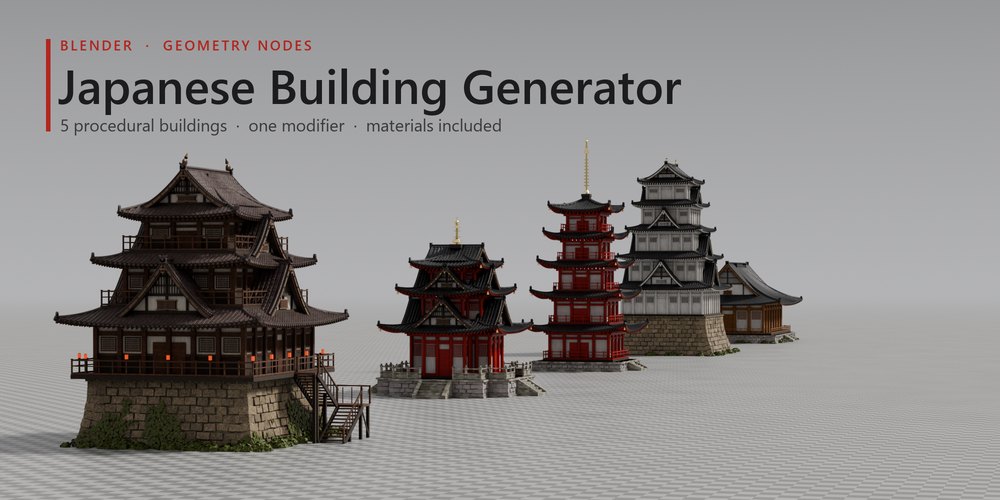
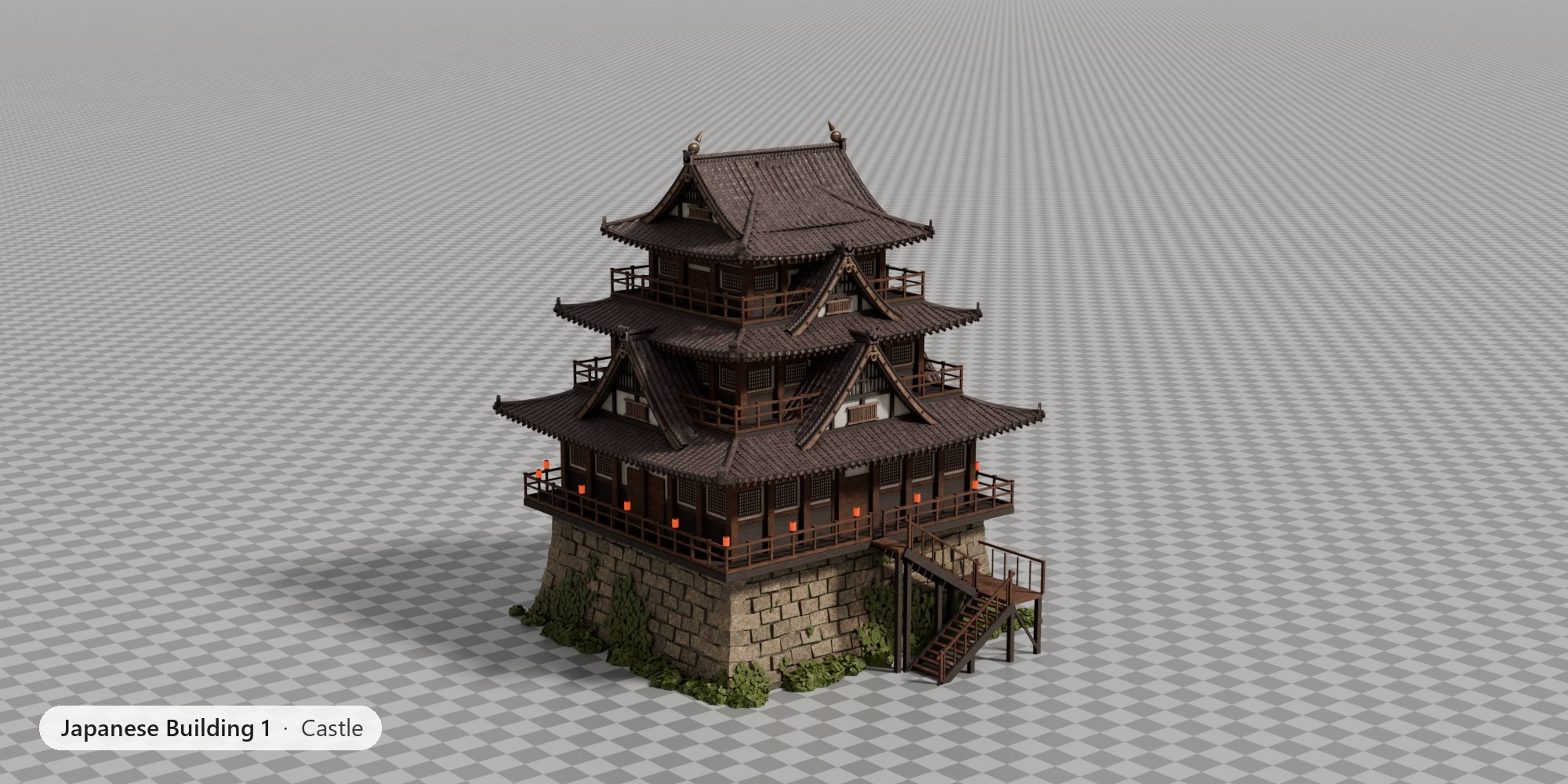
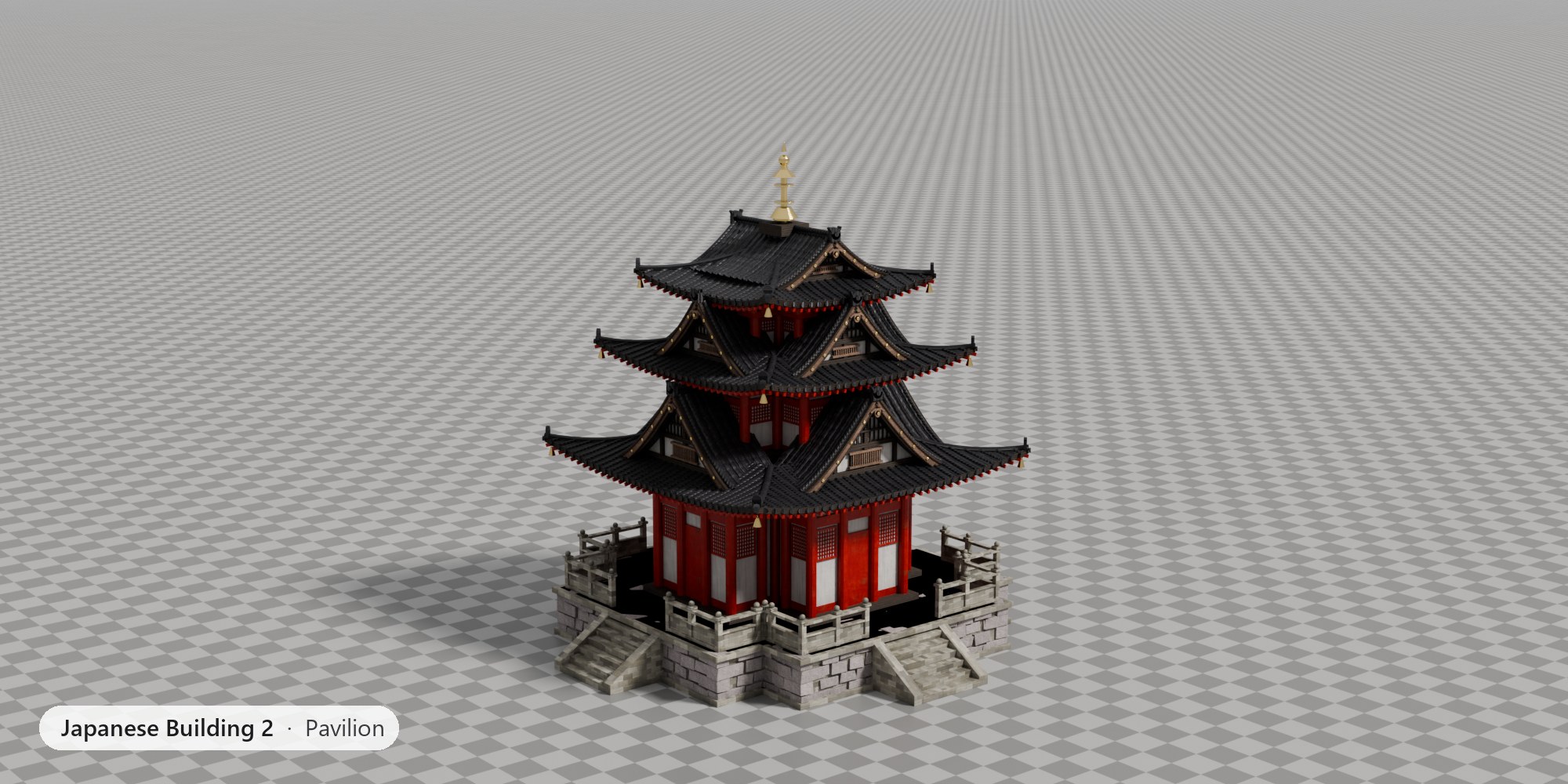
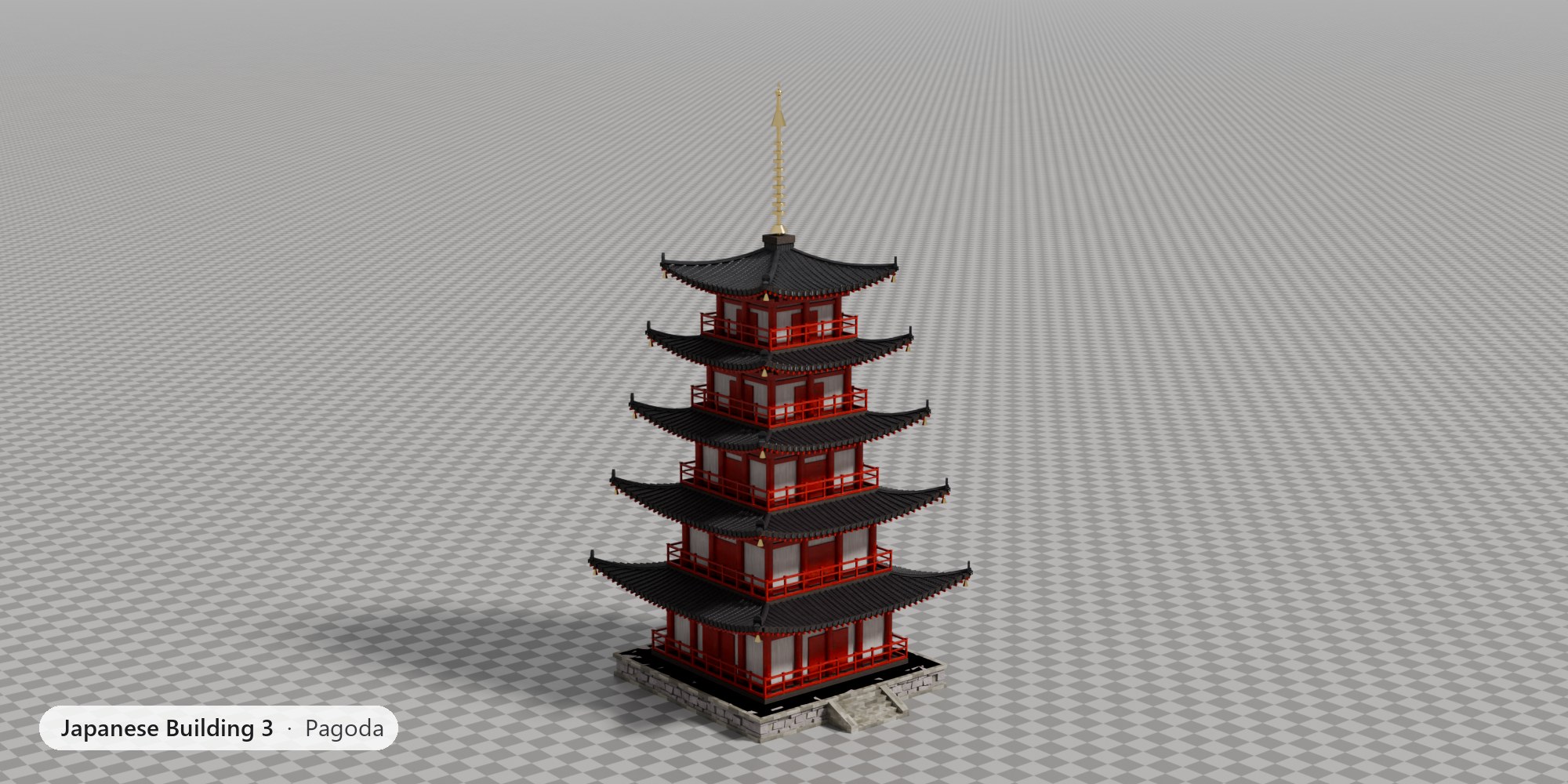
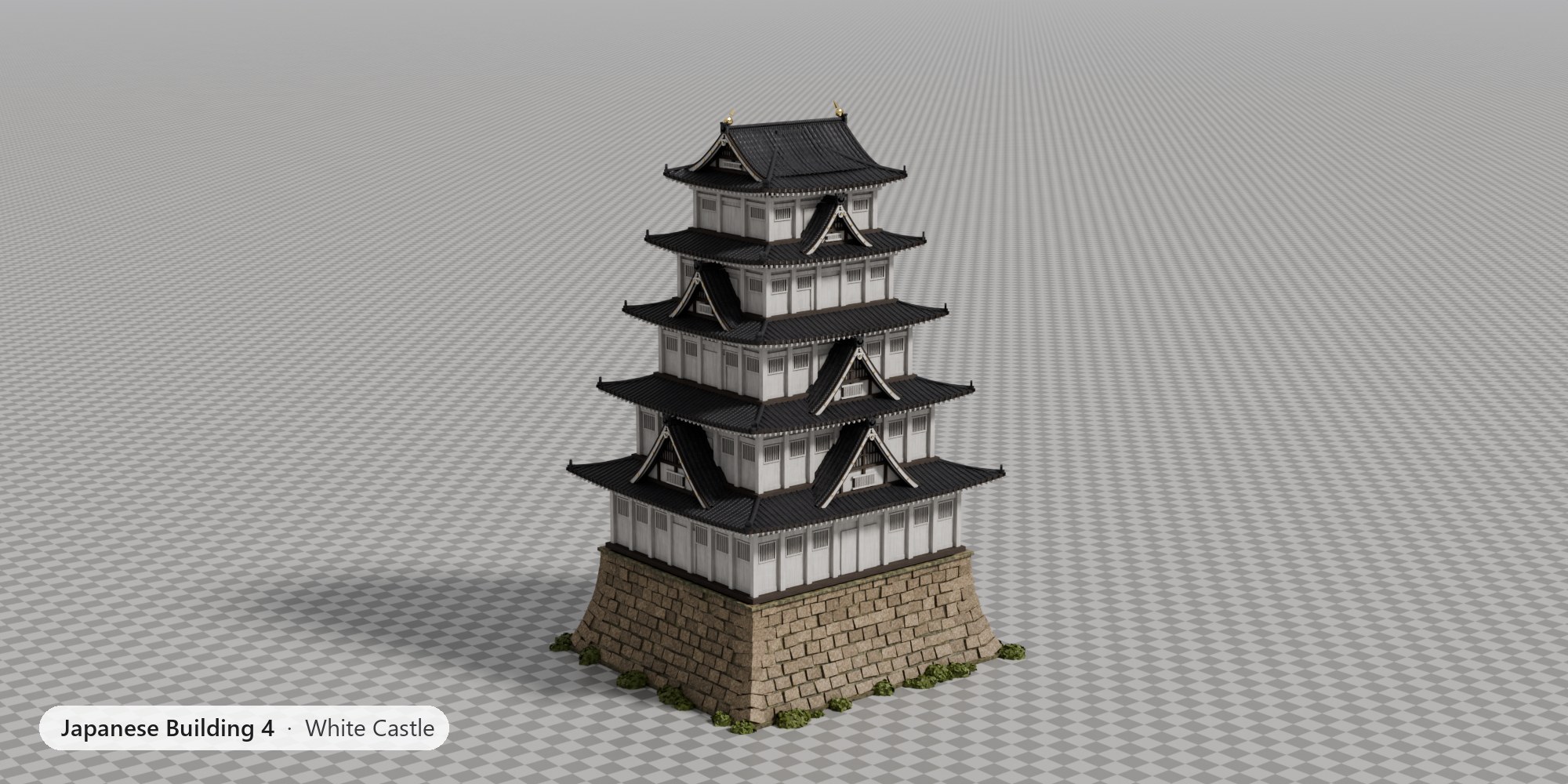
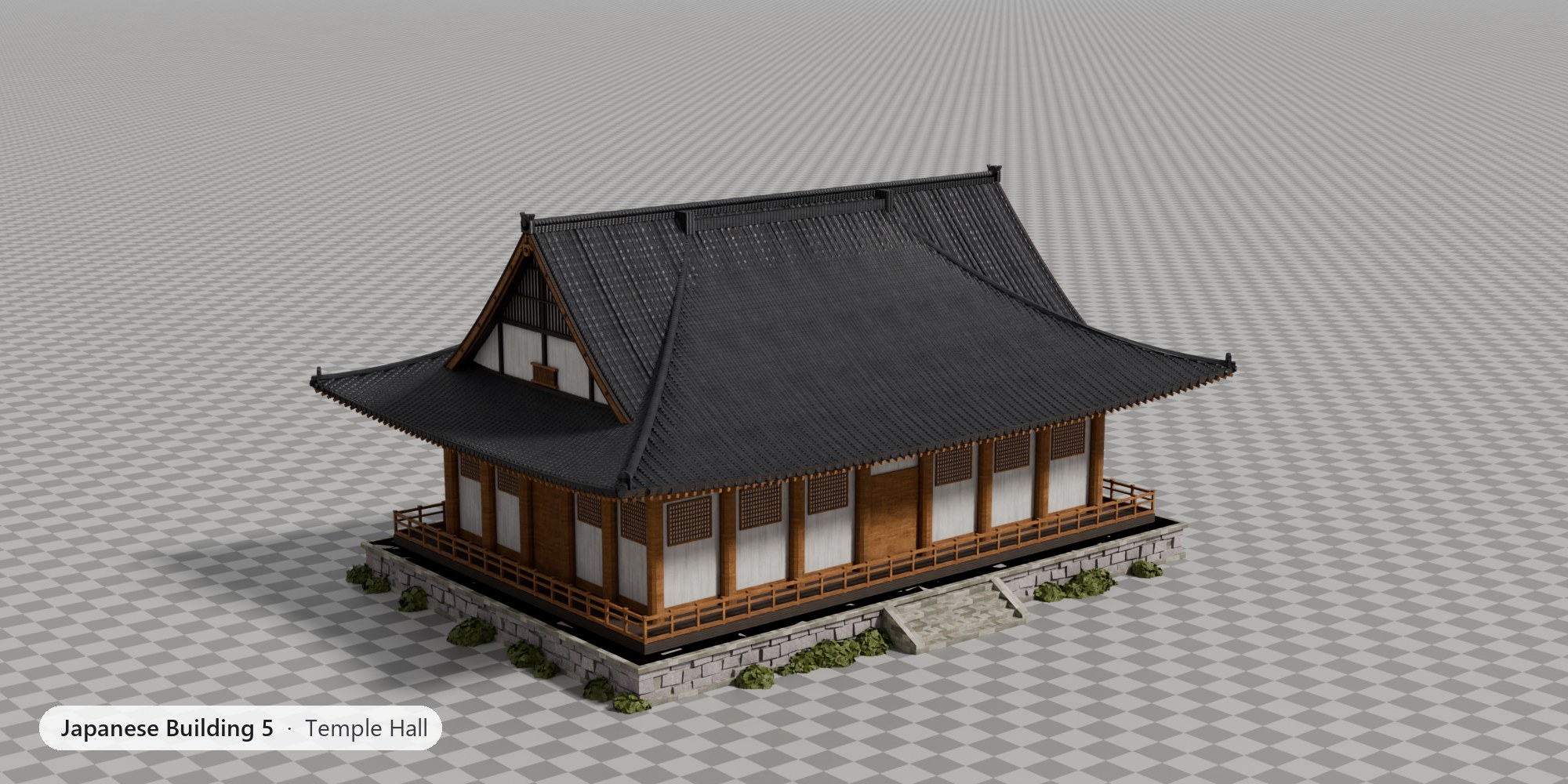
The five buildings (Japanese Building 1 – Castle to 5 – Temple Hall) are copies of the same node group with different defaults and materials, marked as assets. Japanese Building Generator is the generic group they come from.
Installation
There is no add-on to install. Unzip the download and keep the folder together:
japanese_building_generator.blend | The node groups, materials and both scenes. |
textures/ | 2K ambientCG maps, linked with relative paths. Keep it next to the .blend. |
Use it in your own files
- Asset library (recommended): Edit › Preferences › File Paths › Asset Libraries, add the folder. The five buildings appear in the Asset Browser with previews, in any file. Set the library's import method to Append (Reuse Data) so materials are not duplicated.
- Append: File › Append, open the .blend, go into
NodeTreeand pick a building. Its materials come with it.
textures folder.Quick start
- Add any mesh object, for example a cube (Shift A › Mesh › Cube).
- Drag a building from the Asset Browser onto it. Or: Properties › Modifiers › Add Modifier › Geometry Nodes, then pick Japanese Building 1 – Castle from the node group list.
- The building appears at the object's origin, with its materials. Move, rotate and scale the object as usual.
- Change the inputs in the modifier panel. Use several objects for a whole town; each keeps its own settings.
The five buildings
Key settings of each preset. Everything else is listed under Parameters.
| Input | Castle | Pavilion | Pagoda | White Castle | Temple Hall |
|---|---|---|---|---|---|
| Floors | 3 | 3 | 5 | 5 | 1 |
| Base Width | 10.5 | 7 | 6.5 | 12 | 18 |
| Base Depth | 9.5 | 7 | 6.5 | 10.5 | 11 |
| Cross Plan | Off | On | Off | Off | Off |
| Roof Curvature | 0.35 | 0.55 | 0.6 | 0.4 | 0.55 |
| Corner Upturn | 0.35 | 0.55 | 0.8 | 0.3 | 0.6 |
| Gables | On | On | Off | On | Off |
| Irimoya Top | On | On | Off | On | On |
| Podium Height | 4 | 1.5 | 1 | 5 | 1.2 |
| Wooden Stairs | On | Off | Off | Off | Off |
| Ivy | On | Off | Off | Off | Off |
| Spire | Off | On | On | Off | Off |
| Bells | Off | On | On | Off | Off |
| Lanterns | On | Off | Off | Off | Off |
| Vertices | 245k | 141k | 123k | 286k | 206k |
Parameters
All inputs of the modifier, panel by panel. Defaults are the Castle's; the other buildings change some of them. Lengths are in metres. Panels: Generator · Footprint · Roof · Gables · Structure · Base · Spire · Materials
Generator
Storey count and random variation.| Input | Type | Castle default | Range | What it does |
|---|---|---|---|---|
| Seed | Int | 0 | Random seed for the variation and the shrubs | |
| Floors | Int | 3 | 1 – 12 | Number of storeys |
| Variation | Float | 0 | 0 – 1 | Random jitter of taper and storey height, driven by Seed |
Footprint
Plan size, storey proportions and the cross-shaped plan.| Input | Type | Castle default | Range | What it does |
|---|---|---|---|---|
| Base Width | Float | 10.5 | ≥ 1 | Width of the first storey along X, in metres. |
| Base Depth | Float | 9.5 | ≥ 1 | Depth of the first storey along Y, in metres. |
| Floor Height | Float | 2.8 | ≥ 0.5 | Wall height of the first storey; upper storeys scale by Height Falloff. |
| Taper | Float | 0.74 | 0.4 – 1 | Footprint scale per storey |
| Height Falloff | Float | 0.78 | 0.4 – 1.2 | Storey height scale per storey |
| Cross Plan | Bool | Off | Cut the corners back into a cross-shaped plan | |
| Cross Inset | Float | 0.22 | 0 – 0.45 | How far the corners are cut back, as a fraction of each side |
Roof
Shape of every roof: pitch, curve, upturned corners, tiles and ornaments.| Input | Type | Castle default | Range | What it does |
|---|---|---|---|---|
| Overhang | Float | 1.5 | ≥ 0 | How far the eaves reach beyond the walls. |
| Roof Pitch | Float | 0.7 | 0 – 2 | Rise over half span |
| Roof Curvature | Float | 0.35 | 0 – 1 | 0 = straight slope, 1 = flat eaves and steep ridge |
| Corner Upturn | Float | 0.35 | ≥ 0 | How high the roof corners sweep up, in metres. |
| Corner Flare | Float | 0.04 | 0 – 0.5 | How far the corners sweep outwards |
| Roof Thickness | Float | 0.2 | ≥ 0.02 | Thickness of the roof slabs and eaves. |
| Roof Resolution | Int | 8 | 2 – 32 | Subdivisions of each roof surface. Lower is faster in the viewport. |
| Rafters | Bool | On | Exposed rafter ends under the eaves. | |
| Ornate Ends | Bool | On | Onigawara on the hip ends and round eave tile ends | |
| Tile Ribs | Bool | On | Round-tile rows on the roofs as real geometry | |
| Bells | Bool | Off | Wind bells (furin) hanging from the roof corners. |
Gables
Chidori-hafu gable dormers and the hip-and-gable (irimoya) top.| Input | Type | Castle default | Range | What it does |
|---|---|---|---|---|
| Gables | Bool | On | Chidori-hafu gable dormers on the lower roofs | |
| Gable Size | Float | 0.5 | 0.1 – 1 | Gable width as a fraction of the storey width |
| Gable Pitch | Float | 1.15 | 0.3 – 3 | Gable height over half width |
| Bargeboard Size | Float | 0.9 | 0.1 – 3 | Depth of the gable bargeboards, relative to the roof thickness |
| Irimoya Top | Bool | On | Hip-and-gable top roof | |
| Ridge Ornaments | Bool | On | Golden shachihoko on the top gables |
Structure
Pillars, decks, brackets, balconies, windows, doors and lanterns.| Input | Type | Castle default | Range | What it does |
|---|---|---|---|---|
| Pillar Radius | Float | 0.15 | ≥ 0.02 | Radius (or half width) of the wall pillars. |
| Pillar Spacing | Float | 1.5 | ≥ 0.3 | Target distance between pillars; windows sit in the bays between them. |
| Square Pillars | Bool | On | Square pillars instead of round ones. | |
| Deck Thickness | Float | 0.25 | ≥ 0.02 | Thickness of each storey's floor deck and balcony. |
| Balcony Width | Float | 1.1 | ≥ 0 | Width of the walkway around each storey. |
| Bracket Height | Float | 0.16 | ≥ 0.02 | Height of each layer of the tokyo bracket sets under the eaves. |
| Bracket Step | Float | 0.12 | ≥ 0 | How far each bracket layer steps outwards. |
| Railing | Bool | On | Balcony balustrade around each storey. | |
| Railing Height | Float | 0.85 | ≥ 0.1 | Height of the balcony balustrade. |
| Balustrade Panels | Bool | Off | Solid panels between the balustrade posts. | |
| Windows | Bool | On | Barred renji-mado windows between the pillars. | |
| Wall Panels | Bool | On | Dark wainscot panels on the lower walls. | |
| Lattice | Bool | On | Paper lattice (shoji) windows and lattice door leaves | |
| Lanterns | Bool | On | Red paper lanterns on the balcony posts |
Base
Stone base, steps or wooden stairs, ivy and shrubs.| Input | Type | Castle default | Range | What it does |
|---|---|---|---|---|
| Podium Height | Float | 4 | ≥ 0 | Height of the stone base. 0 removes it. |
| Podium Margin | Float | 0.3 | ≥ 0 | Stone top beyond the walls of the first storey |
| Batter | Float | 0.6 | ≥ 0 | How far the stone foot spreads |
| Stone Blocks | Bool | On | Rough 3D stone courses with sangi-zumi corners | |
| Stone Size | Float | 0.5 | ≥ 0.15 | Course height of the stones |
| Ivy | Bool | On | Ivy patches climbing the stone walls | |
| Ivy Density | Float | 0.5 | 0 – 1 | How much of the stone wall the ivy covers. |
| Stair Steps | Int | 5 | 0 – 30 | Stone steps (used when Wooden Stairs is off) |
| Stair Width | Float | 1.5 | ≥ 0.2 | Width of the stone steps or the wooden staircase. |
| Steps All Sides | Bool | Off | Stone steps on all four sides instead of the front only. | |
| Platform Balustrade | Bool | Off | Stone balustrade around the top of the podium. | |
| Wooden Stairs | Bool | On | A two-flight wooden staircase up the podium instead of stone steps. | |
| Vegetation | Bool | On | Shrubs around the foot of the base. | |
| Vegetation Density | Float | 0.55 | 0 – 1 | How many shrubs. |
Spire
The sorin finial on top.| Input | Type | Castle default | Range | What it does |
|---|---|---|---|---|
| Spire | Bool | Off | Sorin finial on the top roof, as on pagodas. | |
| Spire Height | Float | 6 | ≥ 0 | Height of the finial. |
| Spire Rings | Int | 9 | 0 – 20 | Number of rings on the finial. |
Materials
Ten material slots. The building uses its own set unless Custom Materials is on.| Input | Type | Castle default | Range | What it does |
|---|---|---|---|---|
| Custom Materials | Bool | Off | Use the materials below instead of the building's own | |
| Wood | Material | JB_Weathered_Wood | Pillars, beams, balconies and stairs. | |
| Plaster | Material | JB_Plaster_Warm | Walls. | |
| Trim | Material | JB_Dark_Wood | Decks, panels, door recesses, shoji backing. | |
| Roof | Material | JB_Roof_Weathered | Roof tiles (uses the roof's own tile coordinates). | |
| Stone | Material | JB_Castle_Stone | Steps and platform paving. | |
| Masonry | Material | JB_Rock_Blocks | The stone base. | |
| Metal | Material | JB_Bronze | Ornaments, finials, bells and ridge fish. | |
| Light Wood | Material | JB_Light_Wood | Lattices, bargeboards and the wooden stairs. | |
| Foliage | Material | JB_Foliage | Ivy and shrubs. | |
| Lantern | Material | JB_Lantern | Paper lanterns (emissive). |
Materials
Each building uses its own ten materials. They are built into the node group, so a building dropped on a new object always arrives with them. To change them, turn on Custom Materials in the Materials panel and set any slot.
| Slot | Used for | Castle | Pavilion | Pagoda | White Castle | Temple Hall |
|---|---|---|---|---|---|---|
| Wood | Pillars, beams, balconies and stairs. | Weathered Wood | Vermilion Wood | Vermilion Wood | Plaster | Cedar |
| Plaster | Walls. | Plaster Warm | Plaster | Plaster | Plaster | Plaster |
| Trim | Decks, panels, door recesses, shoji backing. | Dark Wood | Dark Wood | Dark Wood | Dark Wood | Dark Wood |
| Roof | Roof tiles (uses the roof's own tile coordinates). | Roof Weathered | Roof Tiles | Roof Tiles | Roof Tiles | Roof Tiles |
| Stone | Steps and platform paving. | Castle Stone | Stone | Stone | Castle Stone | Stone |
| Masonry | The stone base. | Rock Blocks | Ashlar | Ashlar | Rock Blocks | Ashlar |
| Metal | Ornaments, finials, bells and ridge fish. | Bronze | Gold | Gold | Gold | Bronze |
| Light Wood | Lattices, bargeboards and the wooden stairs. | Light Wood | Light Wood | Light Wood | Plaster | Cedar |
| Foliage | Ivy and shrubs. | Foliage | Foliage | Foliage | Foliage | Foliage |
| Lantern | Paper lanterns (emissive). | Lantern | Lantern | Lantern | Lantern | Lantern |
The materials are Principled BSDF setups on ambientCG 2K maps (colour, roughness, normal, AO) with extra realism: bevelled edges, per-part colour variation, grime in the creases and streaks. The roof material follows the tiles through their own coordinates, so the pattern lines up with the tile rows.
Scenes
Japanese Building Generator (outdoor)
The five buildings side by side on generated grounds: gravel around each footprint, grass that thins out
with distance, a belt of trees behind the row, a sun and a sky HDRI. The grounds are a Geometry Nodes modifier
too (JB Grounds on JB_Ground) and follow the objects in the JB Buildings
collection, so you can move buildings around and the gravel and grass follow.
Japanese Building Studio
The same buildings on a 1 m checker floor that fades into a grey backdrop, lit by a soft key light and a
studio dome. There is a 2:1 camera per building (JB_Studio_Cam_…) and a cover camera down the row
(JB_Studio_Cover). Both scenes share the buildings: change one, both update.
Rendering
- Both scenes are set to Cycles, 128 samples, adaptive sampling, denoising and AgX (Medium High Contrast).
- EEVEE works too; turn on Raytracing for the roof and plaster to look their best.
- The lanterns are emissive and light the balconies at dusk; lower the sun for an evening shot.
- On GPUs with little memory, render the buildings you need and hide the rest (camera icon in the outliner).
Performance
A building is 120k–290k vertices. To keep the viewport fast while you work:
- Lower Roof Resolution (8 → 4) and turn off Tile Ribs; turn them back on for the render.
- Turn off Stone Blocks (flat textured base) and lower Ivy Density and Vegetation Density.
- For many buildings, show the modifier in the viewport only for the one you are editing.
- Apply the modifier on finished buildings you no longer need to change.
Your own presets
- Set the inputs on a building until you like it.
- In the modifier, click the duplicate icon next to the node group name to make a copy, and rename it.
- In the node editor's sidebar (Group tab), set the inputs' defaults to your values, or right-click the node group in the Outliner (Blender File view) › Mark as Asset.
The copy keeps its own materials. Turn on Custom Materials in it to give it a new set.
Export & apply
- Object › Apply › Visual Geometry to Mesh (or apply the modifier) turns the building into a normal mesh with materials.
- FBX, glTF and USD export the evaluated building directly; instances (tiles, pillars, ivy) are realised.
- The roof tile coordinates are stored as attributes (
tile_u,tile_v); applying keeps them, so the roof material still lines up.
FAQ & troubleshooting
The building has no materials or is grey.
Check that Custom Materials is off. If the materials show but textures are pink, the
textures folder was moved: use File › External Data › Find Missing Files.
Where does the building appear?
At the object's origin, standing on its local Z = 0. The object's own mesh is not used, so any mesh works. Scale the object to scale the building.
Can I make a village?
Yes. Add several objects, each with a building. Change Seed and Variation for small differences between copies.
The viewport is slow.
See Performance.
Does it work in Blender 4.2?
It is built and tested for 4.5 LTS and 5.x. Older versions are not supported.
Credits
PBR textures and the sky HDRI from ambientCG, CC0 1.0. Generator, node groups and materials made with Blender Geometry Nodes.